How to Organize Downloaded Pinterest Videos So You Can Actually Find Them Later
Saving a Pinterest video takes seconds. Finding it three weeks later — without a system — can take much longer. Here is how to keep your downloaded files clean, searchable, and genuinely useful.
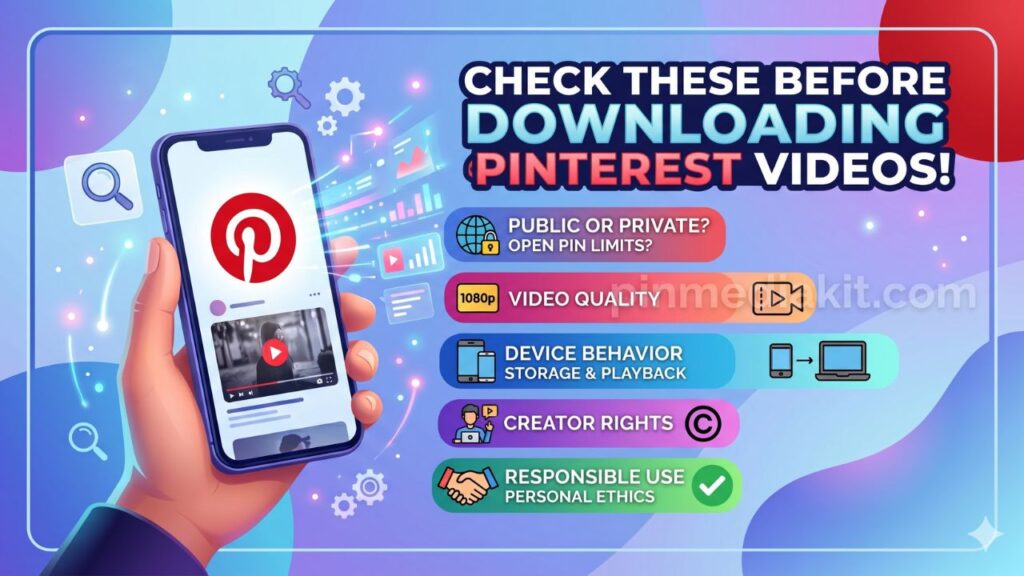
Pinterest Video DownloaderYou have already saved a few public Pinterest videos using the Pinterest Video Downloader. Now your Downloads folder has files named something like video_7392847561.mp4 sitting next to three files that look exactly the same. Before that pile grows any larger, a little organisation goes a long way. If you have not read what to know before downloading Pinterest videos, that is a good starting point — this guide picks up where the downloading ends.
Why Downloaded Pinterest Videos Get Messy Quickly
The problem is almost always the same: the default download location. Every browser drops saved files into one generic folder — usually called Downloads — with whatever filename the server happened to send. Pinterest video files arrive with numeric IDs or random strings that carry no useful information about the content inside.
Add a habit of saving a few pins a week, and within a month you can easily have forty files in one flat folder with no way to tell a sourdough technique video from a mid-century furniture reference without opening each one individually.
Three specific things cause the mess to compound:
- No folder structure. All files land in the same place regardless of topic or project.
- Generic filenames. Numeric IDs are meaningless at a glance and unsearchable by content.
- Duplicates from retries. A slow connection or a repeated download attempt produces two or three copies of the same file, often with slightly different suffixes like
(1)or(2).
None of this is difficult to fix — it just requires a small habit change introduced early, before the folder becomes unwieldy.
Create Folders by Project or Topic
The single highest-impact change you can make is to stop saving everything into one flat Downloads folder and instead create a small set of named subfolders before you start a download session.
A simple structure that works for most people looks like this:
Pinterest-References/
  Interior-Design/
  Colour-Palettes/
  Typography/
Pinterest-References/
  Recipes/
  Fitness/
  Garden-Ideas/
Pinterest-References/
  Kitchen-Reno-2025/
  Birthday-Party/
  Wardrobe-Edit/
Pinterest-References/
  Knitting/
  Resin-Techniques/
  Macrame/
The top-level folder name does not matter much — what matters is that every topic or active project gets its own subfolder, and you always move or save a file there immediately rather than leaving it in Downloads to sort later.
Practical tip: Create the destination folder before you download. It takes ten seconds and removes the temptation to leave the file in Downloads “just for now.”
Rename Files Before They Pile Up
As soon as a file lands on your device, rename it. This is the most tedious step, and also the one that pays off most noticeably six months later when you are searching for a specific reference and actually find it in under ten seconds.
A useful filename convention includes three things: the topic, a short description of the content, and a date.
video_738294756182.mp4
recipe_pasta-dough-technique_2025-05.mp4
pin-media-1029384756.mp4
interior_japandi-shelf-styling_2025-05.mp4
Keep filenames lowercase with hyphens instead of spaces — this avoids compatibility issues across Windows, Mac, iOS, and Android. The date at the end lets you sort by recency without depending on file-system timestamps, which can shift when you move or copy files between devices.
If you download frequently, batch renaming at the end of a session takes far less time than hunting for an unnamed file later.
Keep Personal-Reference and Reusable Files Separate
Not all saved Pinterest videos serve the same purpose, and mixing them together leads to confusion about what you are allowed to do with each file.
A clear two-category split prevents mistakes:
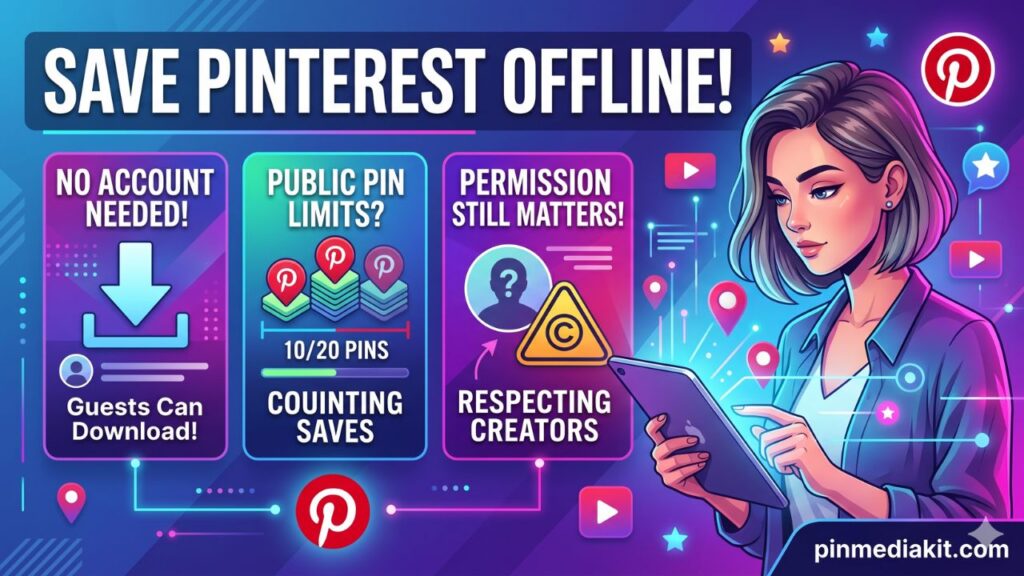
- Personal reference only. Videos you saved to learn from, follow along with, or draw inspiration from — but which belong to another creator and are for your eyes only. These should sit in a clearly labelled folder that you never share or upload anywhere.
- Your own content or licensed material. Videos you originally uploaded to Pinterest yourself, or content where you have confirmed written permission from the creator or hold a valid license. These can be used more flexibly within the terms of that permission.
A simple folder naming approach: add a prefix to make the distinction obvious at a glance.
When you return to a folder weeks later, the prefix immediately tells you which category you are looking at — and what you can and cannot do with those files.
Add Source Notes When Permission Matters
For any video you might ever want to use beyond personal viewing — in a presentation, a mood board you share with a client, a workshop, or a collaborative project — keeping a record of where it came from and what permissions are in place is essential.
You do not need a complex system. A plain text file inside each project folder works well:
sources.txt inside each project folder — one line per file: filename | pin URL | creator | permission status
One row per saved file. Columns: filename, pin URL, creator handle, date saved, permission (personal-ref / own / licensed)
The permission status column is the important one. It should say one of three things: personal reference only, own content, or creator permission obtained — date and method. Anything that does not have a clear entry in that column should be treated as personal reference only until you have confirmed otherwise.
Why this matters: Memories fade. A note you write today about where a video came from — and what was agreed — takes thirty seconds. Tracing that information six months later can take much longer, or may simply be impossible if the original pin has since been deleted.
Back Up Important Creative References
A downloaded file on a single device is one hardware failure, one accidental deletion, or one lost phone away from being gone. If a video is genuinely useful to you — a technique you return to regularly, a reference that informs an ongoing project — treat it with the same care as any other working file.
Practical backup approaches that do not require any special software:
- Cloud storage folder sync. Keep your Pinterest-References folder inside Google Drive, iCloud, Dropbox, or OneDrive. Files sync automatically whenever you are connected, and you can access them from any device.
- External drive copy. Once a month, copy your references folder to an external drive. This takes a few minutes and protects against both device loss and cloud account issues.
- Organised by year. Archive older reference folders — anything you no longer actively use — into a dated archive subfolder. This keeps your active workspace lean without deleting material you might return to later.
Worth knowing: If the original Pinterest pin is later deleted or made private, your local copy is the only version you will have. A backup ensures that your reference library survives regardless of what changes on Pinterest.
Delete Duplicates and Failed Downloads
Duplicate files accumulate faster than most people expect. A slow mobile connection, a browser that starts a download twice, or a retry when a file did not seem to save correctly — each of these produces an extra copy that silently occupies storage and adds visual clutter when you browse your folders.
A short cleanup session once a month is enough to stay on top of it:
-
1
Sort your folder by filename. Duplicates almost always appear next to each other — look for files with identical names followed by
(1),(2), or_copy. -
2
Sort by file size within the same filename group. Keep the largest version — it is almost always the most complete download. Delete smaller variants from incomplete transfers.
-
3
Look for zero-byte or very small files. A failed download sometimes leaves a placeholder file. These are safe to delete.
-
4
Check for files that no longer match your folder topic — downloads that landed in the wrong subfolder because you were in a hurry. Move or delete as appropriate.
-
5
Empty the trash after cleanup so the storage is actually freed, not just moved out of view.
On desktop, tools like Finder on Mac and File Explorer on Windows both sort by name and size natively — no additional software is required for a basic duplicate sweep.
Use Pinterest Boards and Local Folders Together
Pinterest’s own organisation features are genuinely useful — and they work best as a companion to your local folder system rather than a replacement for it.
Inside Pinterest, you can create boards for each topic, arrange boards into a custom order on your profile, and sort pins within a board. Keeping a well-maintained Pinterest board means you always have the original source link accessible, along with any context the creator added — captions, links, tags, and related pins that Pinterest surfaces nearby.
Your local folder serves a different role: it holds files that work offline, survive pin deletions, and can be organised with your own naming and folder conventions in ways Pinterest’s board system does not support.
The two systems complement each other naturally:
Keeping the original source link. Discovering related pins. Sharing curated boards with others. Ongoing visual browsing and planning.
Offline access. Protecting against deleted pins. Project-specific file sets. Detailed renaming and permission tracking.
A practical combined workflow: save the pin to a Pinterest board as the primary record, then download the video only when you have a specific offline or project use case that requires a local file. This way your Pinterest boards stay current and browsable, while your local folders stay lean and intentional.
Reminder: Downloading a public Pinterest video for offline personal reference is a reasonable and common use. Keeping the original pin saved in a board alongside your local file ensures you can always trace the source — useful if you later want to credit the creator or check whether their permissions have changed.
Save Public Pinterest Videos With PinMediaKit
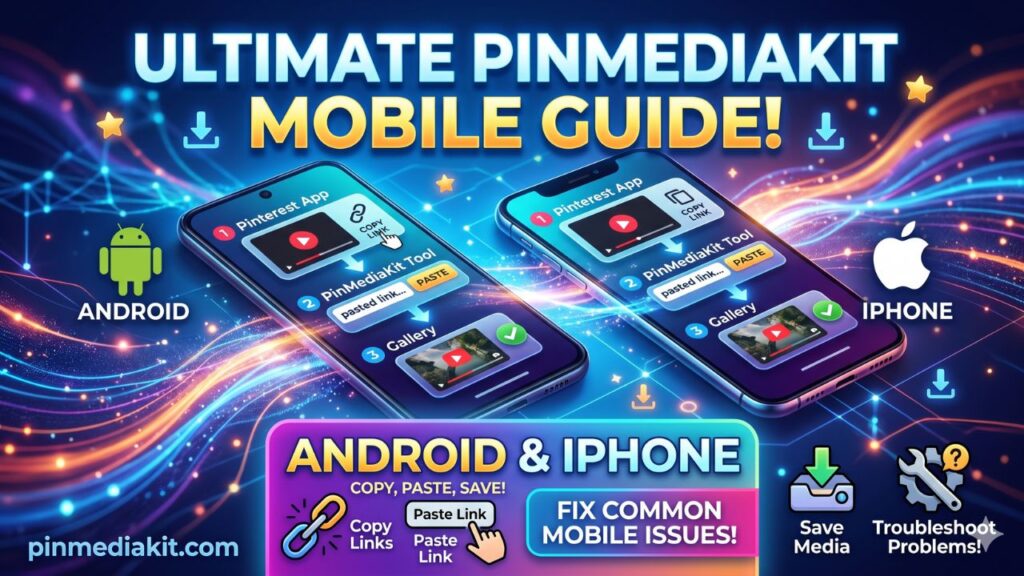
Ready to check a public pin? Open the Pinterest Video Downloader, paste the Pinterest video URL, and preview the available file.
Open Pinterest Video Downloader