Using PinMediaKit on Your Phone: Android and iPhone Guide
How to copy a Pinterest link from the app, paste it into PinMediaKit in your mobile browser, preview the available file, and save it — with separate instructions for Android and iPhone behaviour.
Open Pinterest Video DownloaderThe Pinterest video downloader PinMediaKit runs entirely in a browser — which means it works on your phone exactly as it does on a desktop, with one important difference: how your phone handles the file once the download button is tapped. On Android that step is mostly automatic. On iPhone, Safari often opens the file inline and asks you to complete the save manually. This guide covers the full mobile workflow from start to finish, including how to get the pin link out of the Pinterest app in the first place.
How to Copy a Pinterest Link from the App
The Pinterest app does not display the pin URL anywhere on screen. To get it, you go through the share menu — which works the same way on Android and iPhone.
- Tap the pin to open its full detail page. It needs to be fully expanded, not just the hover preview in your feed. The full page shows the creator’s name, description, and the large version of the media.
- Tap the share icon. It sits near the top-right of the detail screen on both platforms — an upward arrow on iPhone, a similar share symbol on Android.
- Tap Copy link in the sheet that appears. The URL copies to your clipboard silently — there is no confirmation in most app versions.
- Check what you copied. Paste it into your Notes app to verify it looks like one of the two formats below before switching to your browser.
pinterest.com/pin/748291038473/pin.it/4RxKmWpLz
Direct pin page links — the only type PinMediaKit accepts.
pinterest.com/username/board/pinterest.com/search/pins/?q=…
Board, profile, search, and feed URLs return no result.
Avoid the long-press shortcut. Long-pressing a pin thumbnail in the feed sometimes shows a quick share option — but it can copy an app-internal link that does not resolve as a public URL. Always open the pin fully, then use Share → Copy link.
How to Paste the Link into PinMediaKit
Switch to your phone’s browser — Chrome, Safari, Firefox, Samsung Internet, and Brave all work — and open PinMediaKit. Tap the URL input field, long-press until the paste menu appears, then tap Paste.
Tap the submit button. PinMediaKit fetches the public pin page and displays a preview of the available file. That preview is the step most people skip on mobile — but it matters, because it tells you the media type and whether multiple resolution options exist before you commit to saving anything.
For image pins the dedicated Pinterest image downloader page is the right starting point. For animated pins, use the Pinterest GIF downloader page. Both follow the same paste-and-preview workflow described here.
If nothing comes back: the most common cause on mobile is pasting the wrong link type — a board or profile URL instead of an individual pin. Paste the URL into your browser address bar directly and confirm the page loads a single pin with a /pin/ in the URL before trying again.
Saving Files on Android
Android handles file downloads the way you would expect — tap the button, the file saves. Chrome and Samsung Internet both treat a download as a real file operation and write it directly to storage without extra steps from you.
- After tapping the download button, a notification appears at the bottom of the screen or in the notification shade. That notification confirms the save is happening.
- The file lands in Internal Storage → Downloads by default. Open the Files app (or Google Files) and go to Downloads to find it.
- Videos do not automatically appear in your gallery. Open the file from the Downloads folder and your gallery app will usually prompt you to add it — or use the share icon to move it to Photos manually.
- If the notification does not appear at all, go to Settings → Apps → [your browser] → Permissions and confirm storage access is enabled.
Tapping the notification immediately after a download opens the file so you can confirm it saved correctly before closing the browser. Worth doing the first time to make sure everything is working as expected on your specific device.
Saving Files on iPhone
Safari on iPhone does not write a file to storage and walk away. Instead it tends to open media inline — a video starts playing in the browser, or an image appears on screen — and then waits for you to decide where it goes. The save step is manual.
- Video opens and plays in Safari: tap and hold the video until a context menu appears. Choose Save to Photos to send it directly to your camera roll, or Save to Files to pick a folder in the Files app.
- Image appears in the browser: tap and hold the image. The same options appear — Save to Photos or Save to Files.
- Download icon appears in the toolbar: Safari shows an arrow-in-a-box icon at the top of the browser when a download is in progress. Tap it, wait for the progress bar to finish, then tap the completed file to choose where to move it.
- Where files go by default: Files app → iCloud Drive → Downloads. You can change this in Settings → Safari → Downloads. From the Files app, use the share sheet to move anything into Photos.
iOS 13 and later have a proper download manager built into Safari, which makes this process considerably smoother. On iOS 12 and earlier, long-pressing the media and using the share sheet is the only built-in option for saving to your device.
Why Mobile Downloads May Behave Differently
The same file, the same download button, two different phones — and the result looks completely different. That is not PinMediaKit behaving inconsistently. It is the gap between how Android and iOS handle files arriving through a browser.
- Chrome writes files directly to the Downloads folder — no extra step from you.
- The browser has full permission to save to storage once you grant it.
- Video formats play natively but the download still proceeds as a file write.
- Samsung Internet behaves the same as Chrome in most cases.
- Safari cannot write directly to the Photos library — you complete the move manually.
- MP4 videos are natively playable, so Safari opens them inline rather than downloading.
- The long-press menu on any media element is your main save route.
- iOS 13+ adds a download manager that simplifies things noticeably.
The underlying reason is browser sandbox rules. Safari on iOS enforces stricter limits on where a web page can write files. Chrome on Android operates with broader storage permissions by default. Neither is broken — they are just built differently, and the save step reflects that.
For detail on how the video file format affects what PinMediaKit can return in the first place, the guide on things to know before downloading Pinterest videos covers this.
What to Do If the File Opens Instead of Downloading
This happens most often on iPhone but can occur on Android too. Work through these steps in order — the first one resolves it in most cases.
- Long-press the download button. On both platforms this is the fastest fix. A long-press on a link or button reveals a context menu with options like Download link, Save to Files, or Save video — depending on the browser and OS version. This bypasses the inline viewer entirely.
- Use the share sheet from inside the inline player. If a video is already playing in the browser, look for the share or options icon in the player controls. On iPhone you will usually see Save Video or access to the Files app from there.
- Switch browsers on iPhone. Chrome for iOS and Firefox for iOS handle some file responses differently to Safari — they may offer a download dialog where Safari defaults to inline playback. Try opening PinMediaKit in a different browser and repeating the same steps.
- On Android Chrome, use the media viewer menu. If Chrome opens the file in its own viewer instead of saving it, tap the three-dot menu in the top-right corner of that viewer. A Download option usually appears there.
- Toggle desktop site. In your browser’s menu, turn on Request Desktop Site or Desktop Mode. Some servers respond to a desktop user-agent string with a different content-disposition header — which can flip the browser’s behaviour from inline playback to a save prompt.
Skip third-party download apps. Apps that claim to unlock hidden download functionality on iPhone are almost never necessary for this workflow and routinely request excessive permissions. Everything above uses capabilities built into your existing browser.
Private, Deleted, or Login-Required Pins
PinMediaKit fetches what is on the public pin page. If Pinterest does not serve media to an unauthenticated visitor, there is nothing for the tool to return — regardless of the browser, device, or how many times you try.
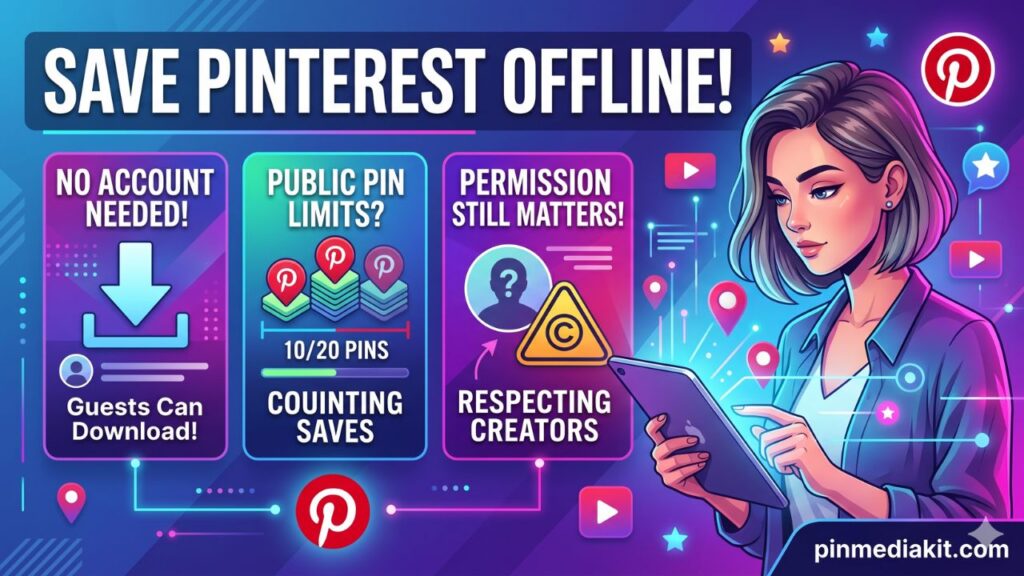
The one test that tells you immediately: paste the pin URL into a private or incognito tab on your phone — no Pinterest account, no cookies. If the media loads and plays, the pin is publicly accessible and PinMediaKit can work with it. If Pinterest shows a login screen instead, it is not.
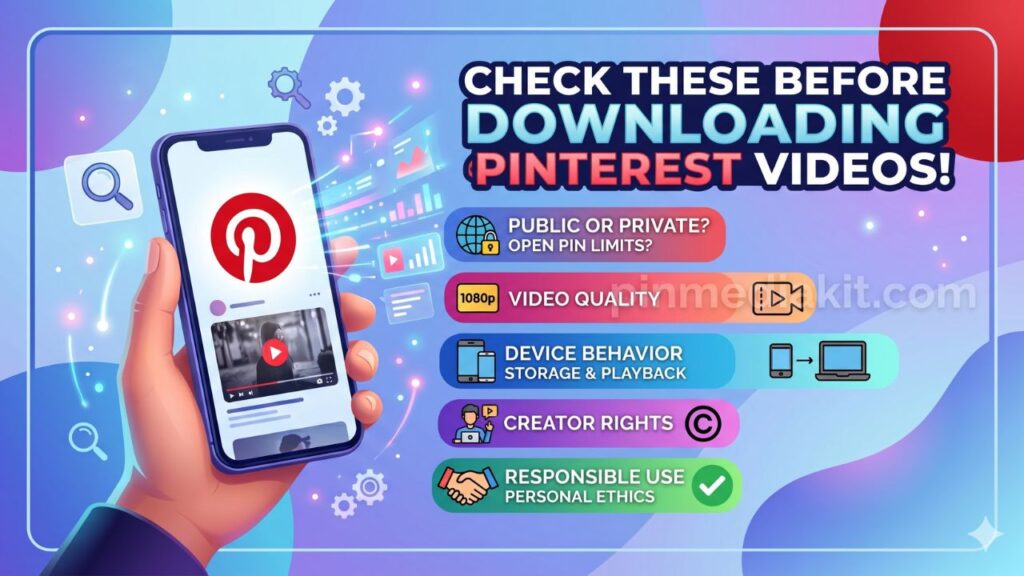
Pinterest allows video creators to turn off the download option on their pins. When a creator has done that, it reflects a deliberate choice. The tool will not override it, and attempting to work around it is not a responsible use of the tool.
Responsible Use on Mobile
The ease of saving on a phone — two taps and it is in your camera roll — makes it worth being deliberate about what you are actually doing with the file.
A file saved to your phone is not a license. Publicly accessible means anyone can view it. It does not mean anyone can repost it, use it in a project, or share it as their own. The creator’s copyright exists independently of whether their pin is visible to the world.
The camera roll is not a starting point for resharing. On mobile, the path from saving a video to sharing it to Instagram, WhatsApp, or TikTok is frictionless. That friction missing from the UX does not mean the permission is there. Reposting someone else’s Pinterest video on another platform — even with credit — requires their consent.
Personal use has a clear shape. Following a recipe in the kitchen without a signal, rewatching a technique tutorial offline, keeping a visual reference for a project you are working on — these are straightforward personal uses that stay on your device. The moment the file moves off your device and onto a platform or into a client deliverable, it is no longer personal use.
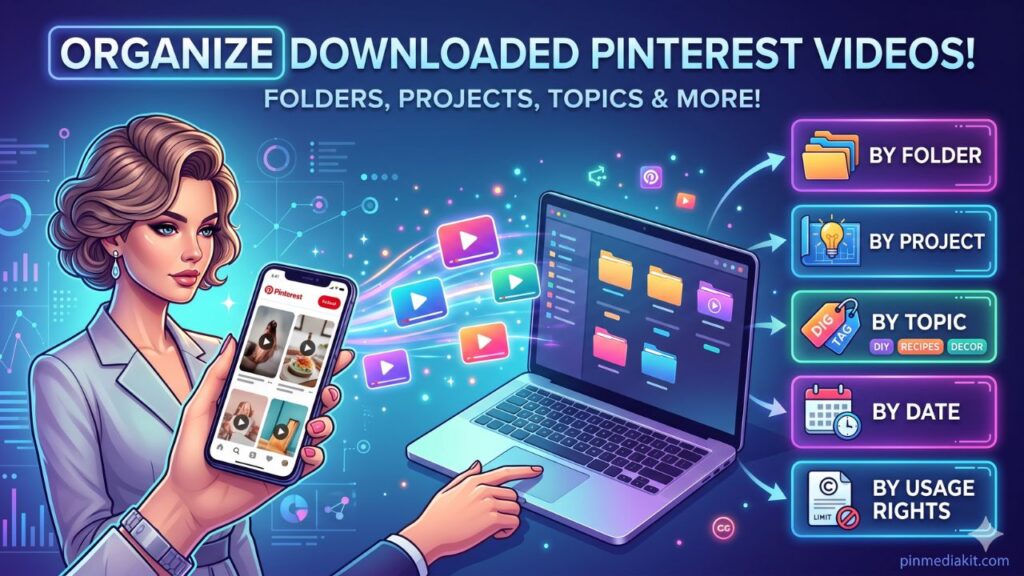
If you plan to do more than watch it yourself, contact the creator before using their work. Most Pinterest creators have their contact details on their profile or linked website. If you want to continue organising files you have saved for legitimate personal use, the guide on how to organise downloaded Pinterest videos covers a folder system that works on both Android and iPhone.
PinMediaKit is an independent utility and is not affiliated with, endorsed by, or connected to Pinterest. The tool reads publicly accessible pin pages submitted by the user and returns the media result when one is found. It does not host Pinterest content or store files beyond temporary caching. Saving a publicly visible pin to your phone for personal offline reference is a common and reasonable practice — but it does not transfer the creator’s copyright, permit redistribution, or licence the content for commercial use. Users are responsible for how they use any saved result. When the intended use goes beyond personal viewing, ask the creator directly.
Ready to Try It on Your Phone?
Copy a public pin link from the Pinterest app, open PinMediaKit in your mobile browser, paste and preview — then save using the steps for your device above.
Open Pinterest Video Downloader