Pinterest Download Times: What’s Normal and What Slows Things Down
Pinterest download time depends on the public pin, file type, file size, Pinterest’s own response speed, browser behavior, device, and internet connection. PinMediaKit checks public links and cannot guarantee instant downloads every time — but understanding what affects speed can help you get better results.
Open Pinterest Video DownloaderMost download delays are caused by common, predictable factors — file size, a slow Pinterest response, mobile browser handling, or a pin that is not publicly available. Understanding how PinMediaKit works and how it behaves on your phone can save a lot of guesswork when a download feels slower than expected.
What a Normal Pinterest Download Time Looks Like
There is no single fixed download time for Pinterest media. A small public image pin may feel nearly immediate. A video pin or a large animated GIF may take several seconds to a few minutes depending on the file and how quickly Pinterest responds. The preview itself can take a moment to appear — that short wait is a normal part of checking whether the submitted link points to real, publicly available media.
Download speed may vary considerably across sessions, devices, and connections. Wording like “often” and “usually” applies here because no two pins are identical, and Pinterest’s own delivery speed is outside PinMediaKit’s control.
Small public image pins, recently checked links, or cached media tend to respond more quickly. A stable connection and a straightforward pinterest.com/pin/ URL usually help the process move along faster.
Video pins, GIFs, large files, a weak or mobile connection, or a slow Pinterest response can all add noticeable time. A brief delay in these cases is expected, not a sign that something is wrong.
Why the Preview Can Take a Few Seconds
When you submit a Pinterest link, PinMediaKit first checks whether that link points to a public pin. Once the link is confirmed, the tool looks for available media associated with that pin before generating a preview for you to review. This two-step process takes a short amount of time, and the duration depends on how quickly Pinterest responds.
On slower connections or during periods of higher Pinterest load, this check may feel sluggish. That is normal. The preview does not appear until the tool has something real to show — which is by design.
File Size Matters
Larger files take more time to transfer regardless of the tool being used. Pinterest may publicly serve a pin in a range of sizes depending on how the original creator uploaded it. The final file size PinMediaKit can retrieve is whatever Pinterest makes publicly available for that pin — no more, no less.
Standard image pins are usually the lightest files. A small JPEG or PNG pin often transfers quickly, especially on a reliable connection with a strong signal.
Animated GIF files can be surprisingly large. Even a short looping animation may carry a significant file size, which can add noticeable transfer time compared to a still image.
Video pins are typically the largest files. Longer clips, higher quality uploads, and wide-format videos will take more time than short clips or lower-resolution content.
If the original creator uploaded a large, high-quality file to Pinterest, the publicly available version will reflect that size. Expect longer transfer times for high-resolution or professionally produced content.
Pinterest Response Can Slow Things Down
PinMediaKit works with publicly available Pinterest content, which means the speed of any download is partly dependent on how quickly Pinterest itself responds to the request. Pinterest, like any large platform, can occasionally be slow or temporarily fail to serve a specific public pin — particularly during high-traffic periods or routine platform maintenance.
A slow response in these situations does not always mean the tool is broken or the pin is unavailable. If the preview is slow to load or the download feels stalled, waiting a short moment and retrying is often worth attempting — provided the pin is genuinely public and the link is correct.
Mobile Browsers Can Feel Slower
Using PinMediaKit on a phone introduces a few browser-specific behaviors that can make downloads feel slower or work differently from a desktop. Android and iPhone handle downloaded media in noticeably different ways, and the browser you use matters as much as the device. For a full walkthrough, see the guide on using PinMediaKit on your phone.
Most Android browsers save files directly to a Downloads folder. The process usually runs in the background. If a download does not appear immediately, checking the notification drawer or the Files app often reveals it in progress or already completed.
On iPhone, Safari may open video or image files inline rather than saving them automatically. Saving typically requires a long-press on the media, then choosing “Save to Photos” or “Save to Files.” Some file types may prompt the Share Sheet instead.
When the Link Is the Real Problem
Some slow or failed downloads are not about connection speed or file size — the link itself may be the issue. PinMediaKit works with individual Pinterest pin pages and pin.it short links. Other types of Pinterest URLs often do not point to a specific piece of media and will not return a downloadable file.
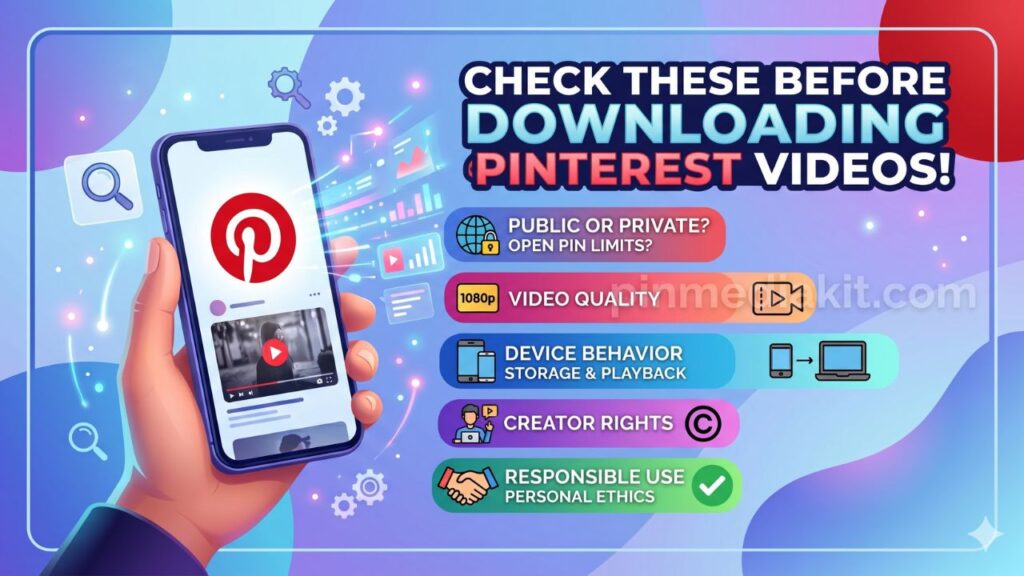
Before retrying a slow download, it is worth checking whether the link is actually a pin page. A board URL, a profile page, a home feed link, or a search results page will not work as expected. See also: things to know before downloading Pinterest videos.
Individual pin pages in the format pinterest.com/pin/ followed by a numeric ID work well. Short pin.it links that resolve to individual pins also work reliably when the pin is public and active.
Board pages, profile pages, home feed links, search result pages, private pins, deleted pins, login-required pins, and geo-restricted or age-restricted content will not return a downloadable file through PinMediaKit.
Timeout Errors: When to Retry and When to Stop
A timeout error means the process took longer than the allowed window before completing. This can happen when Pinterest is slow to respond, the file being requested is very large, the connection is unstable, or the pin is not reachable through a public request. Not all timeout errors are the same, and whether to retry depends on what is causing the delay.
Retrying can be worth it when the pin is confirmed public, the link is a proper pin page URL, the connection is stable, and the previous attempt simply ran out of time before Pinterest responded. A short wait before retrying often improves results.
Retrying is unlikely to change the result when the pin is private, deleted, restricted, or requires a login. Similarly, if the link points to a board or profile page rather than an individual pin, no amount of retrying will produce a downloadable file.
Simple Ways to Improve Download Success
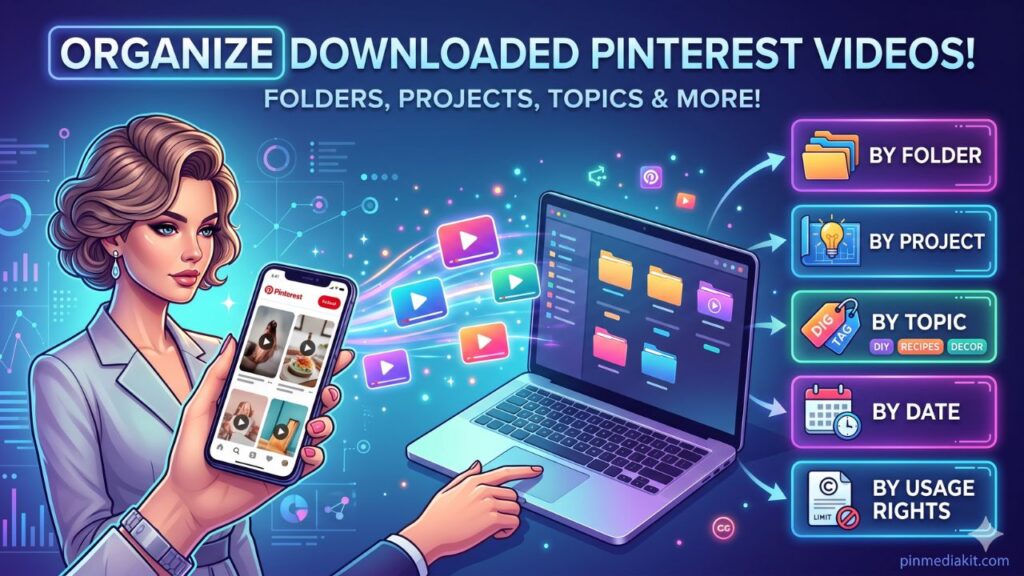
Most download issues can be reduced by following a few practical steps before and during the download attempt. These habits apply to video, image, and GIF pins alike. For more on keeping files organized after saving, see the guide on organizing downloaded Pinterest videos.
Always copy the URL directly from the individual pin page — the address ending with a numeric ID after /pin/. Board pages and profile links will not work as expected.
Opening the Pinterest link in a private or incognito window confirms whether the pin is genuinely public. If the pin is not visible without logging in, it cannot be retrieved through PinMediaKit.
A reliable Wi-Fi or cellular connection reduces the chance of a timeout mid-download. Attempting a large video download on a weak signal or congested network adds unnecessary risk of failure.
If the first attempt results in a timeout or slow response, waiting a minute or two before retrying can help. Pinterest’s response speed can fluctuate briefly and often improves on a second attempt.
PinMediaKit has separate tools for videos, images, and GIFs. Using the tool designed for the specific media type you are targeting may improve the experience and reduce unnecessary load time.
PinMediaKit is designed for individual, manual pin downloads for personal reference. Attempting bulk or automated downloading is outside the intended use of the tool and may result in errors or failed requests.
Which PinMediaKit Tool Should You Use?
Using the right tool for the media type you are trying to save can reduce confusion and make the preview step clearer. Each tool is built around a specific type of publicly available Pinterest content.
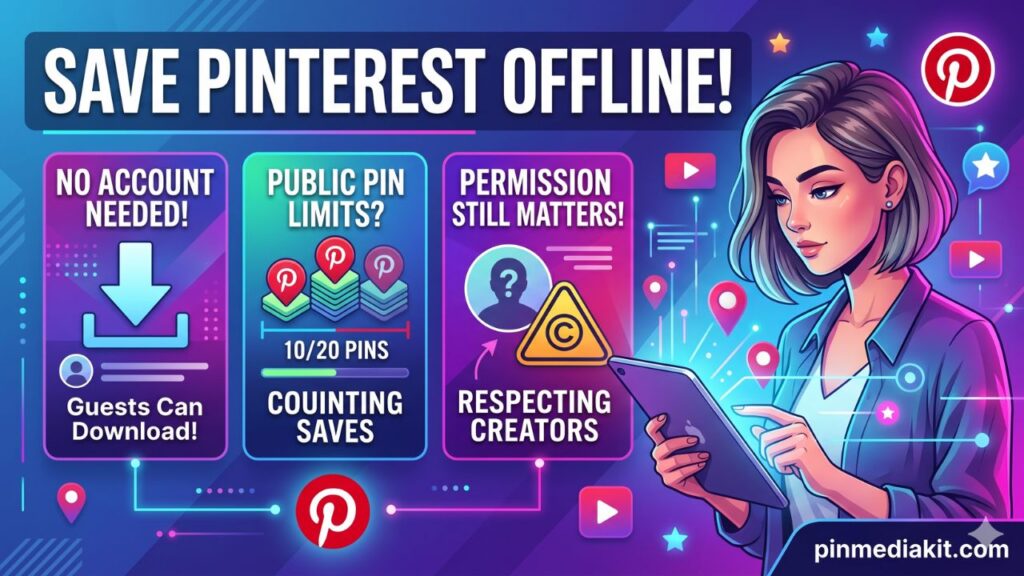
PinMediaKit is for public Pinterest media and personal reference use. Download only files you own, have permission to use, or are allowed to save for personal reference. Downloading a Pinterest file does not give permission to repost, sell, edit, redistribute, or use it commercially without creator permission or a valid license. Users are responsible for how they use saved files.
Check a Public Pinterest Link
Paste a public pinterest.com/pin/ or pin.it link into PinMediaKit and preview what media is available. Download time may vary by file type, connection, device, and public pin availability.
Open Pinterest Video Downloader