Video Quality on Pinterest Downloads: What to Expect
Pinterest download quality depends on the original upload, what Pinterest publicly serves for that pin, file size, compression, device playback, and public availability. PinMediaKit returns the available public file — it cannot guarantee every pin will deliver a sharp or high-resolution result.
Open Pinterest Video DownloaderUsers often expect every downloaded Pinterest video to look exactly like the in-browser preview, but quality can vary because Pinterest may serve different versions of the same media depending on the pin, device, and public availability. Understanding how PinMediaKit works and what affects Pinterest download times helps set realistic expectations before saving a file.
Why Pinterest Video Quality Can Vary
The quality of a downloaded Pinterest video is shaped by several factors that come together before PinMediaKit ever processes the link. What the original creator uploaded, how Pinterest processed and stored that file, which public version of the media is currently available, how the device renders it, and how the browser or player handles the file — all of these influence what the downloaded result looks like.
There is no single quality level that applies to every pin. Some public Pinterest videos are sharp and detailed. Others are compressed, soft, or clearly recorded from another screen. The same variation seen while browsing Pinterest will be reflected in what can be downloaded.
When the original creator uploaded a clear, well-produced video and Pinterest publicly serves a higher-quality version of that file, the downloaded result is more likely to look sharp on most screens and devices.
When the source upload is small, compressed, blurry, or screen-recorded, or when Pinterest only makes a lower-quality public version available for that pin, the downloaded result will likely reflect those same limitations.
Original Upload Quality Matters
A downloader can only retrieve what is publicly available. PinMediaKit cannot make a low-quality source video appear sharper, add detail that was never recorded, or improve a file that was already compressed before it reached Pinterest. If the creator uploaded a small video, a screen recording with visible artifacts, or a heavily compressed clip, the downloaded file will reflect those characteristics.
This is not a limitation specific to PinMediaKit — it applies to any tool that works with publicly available media. The starting point is always the original upload, and the quality ceiling is set there. For more context on what Pinterest makes available, see things to know before downloading Pinterest videos.
Pinterest May Serve Different Versions
Large platforms often store or deliver media in more than one form — adjusting for different devices, connection speeds, screen sizes, and playback contexts. What appears sharp during in-browser Pinterest playback may not always be the same file version that is publicly available for a download request.
PinMediaKit returns the available public media file when one can be found. The final quality of that file depends entirely on what Pinterest serves for that specific pin at that point in time. There is no option to select between quality levels — the publicly available version is what the tool can offer.
Why Some Videos Look Compressed
Compression reduces file size so media loads and transfers faster. This trade-off is common across all video platforms and is not unique to Pinterest. Smaller files load more efficiently, but some visual detail is reduced in the process — particularly in content that challenges compression algorithms. Knowing which types of content compress most visibly can help set the right expectations before saving.
Rapid movement — quick cuts, action sequences, fast panning — is harder to compress cleanly. These frames often show the most visible softness or blocky artifacts in a compressed file.
Small text, fine typography, watermarks, and on-screen labels can look blurry or illegible in a compressed file even when the rest of the video looks acceptable on most screens.
Poorly lit or dark scenes reveal compression noise more noticeably than bright, well-lit content. Shadows and dark gradients are particularly prone to visible artifacting in compressed video files.
Videos that have been recorded from another screen or reuploaded multiple times carry accumulated compression from each stage. These files often look noticeably softer than an original direct upload, regardless of how they are downloaded.
Preview Quality vs Downloaded Quality
The PinMediaKit preview step confirms the correct pin and shows that media is available — it is not a rendering of the final downloaded file at full quality. What appears in the browser preview may look slightly different from how the same file plays back after it has been saved to a device and opened in a media player or photo app.
Browser scaling, video player behavior, display resolution, and how a device handles the file container can all affect the perceived sharpness of the same video. A file that looks soft in a browser preview window may appear sharper in a dedicated player, and vice versa. The preview is most useful for confirming the right pin is selected — not for evaluating final output quality.
Mobile vs Desktop Playback
The same downloaded file can appear noticeably different depending on the screen it is played on. Phone screens are smaller and typically held closer, which can make a slightly compressed video look acceptable. The same file opened on a large desktop monitor may reveal softness or artifacting that was not obvious on mobile. Display scaling, pixel density, video player scaling behavior, and app-level compression after sharing all contribute to these differences.
If a video looks sharp on a phone but poor on desktop — or the reverse — the file itself has not changed. The display context is doing the work. For more on how saving and playback behaves on mobile devices, see the guide on using PinMediaKit on your phone.
On a small mobile screen, most downloaded Pinterest videos look acceptable even at moderate quality levels. The smaller display area and typical viewing distance reduce the visibility of compression artifacts. However, apps may apply their own compression if you share or re-save the file.
On a larger desktop screen, the same video may reveal more visible softness or blocking, especially in fast motion, dark scenes, or fine text. A video that looked fine on a phone may look noticeably compressed when played fullscreen on a monitor.
File Size and Quality Are Connected
A larger file often contains more visual data, which can mean more detail and smoother playback. But file size alone is not a reliable quality indicator. A large file built from a poor-quality source upload may still look soft, blocky, or compressed — the size simply reflects how much data was preserved from a flawed original, not how good that original was.
On the other end, a small file can look perfectly acceptable on a phone screen but fall apart on a large display. Before saving a video, playing it directly on Pinterest and checking whether it looks sharp in the browser is a useful way to set expectations for the downloaded result. For context on how file size affects download time, see the guide on Pinterest download times.
Why Some Pins Are Not Available in Higher Quality
Not every public Pinterest video has a sharper or larger public version accessible through a download request. Some pins may only expose a smaller public file. Some content may have been significantly compressed by Pinterest during upload processing. And some pins may not return any video media at all — depending on whether the link is valid, public, and active.
When the original upload was clear and Pinterest serves a larger public file for that pin, the downloaded result may appear sharp on most screens. This is more common with recently uploaded, well-produced content from active pins.
Some public Pinterest pins only return a reduced or lower-quality file through a public request. This can happen when the original upload was small or when Pinterest serves a compressed version for that pin.
Not every Pinterest link points to a pin with accessible video media. Some pins may contain only images, some may load a preview without a downloadable file, and some may not return usable content through a public request.
Pins that are private, have been deleted, require a login to view, or are geo-restricted will not return media through PinMediaKit regardless of quality. The pin must be genuinely public and active to produce a result.
What PinMediaKit Can and Cannot Control
Understanding where PinMediaKit’s role begins and ends makes it easier to troubleshoot quality concerns and set accurate expectations before saving a file.
How to Check Whether a Pin Is Worth Saving
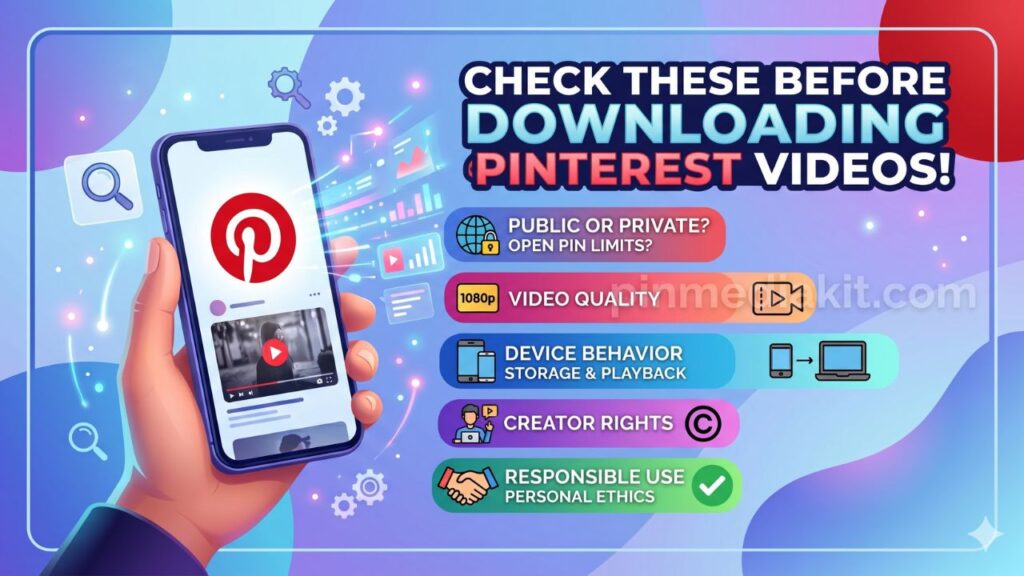
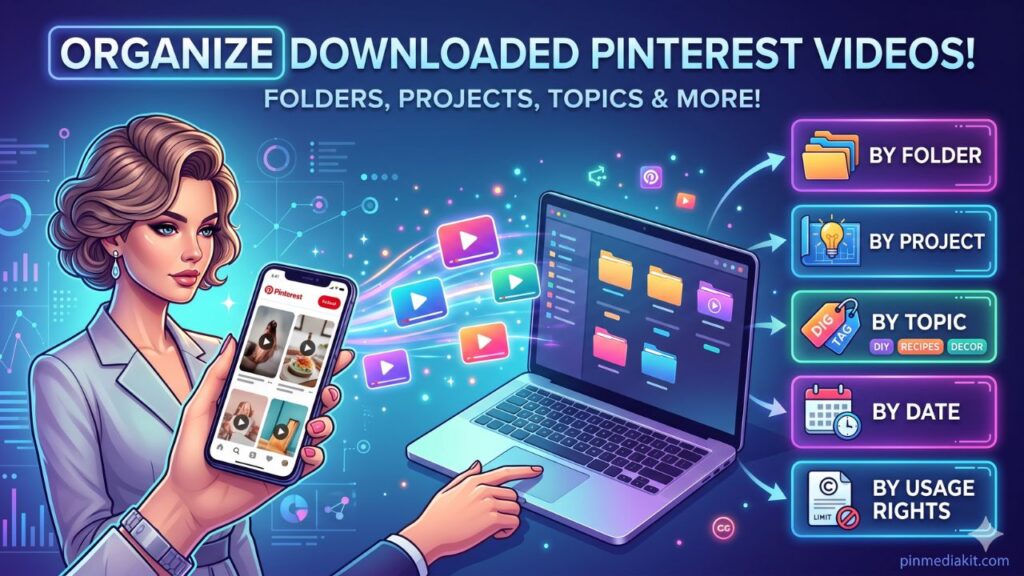
A quick check before saving can prevent disappointment with the downloaded result. These practical steps apply to video, GIF, and image pins alike. For tips on keeping saved files organized, see the guide on organizing downloaded Pinterest videos.
Watch the pin directly on Pinterest before attempting to download. If it looks soft or compressed while playing in the browser, the downloaded file will likely look the same or similar.
Small on-screen text, fine design elements, and subtle detail in dark areas are the first things to suffer from compression. If these look soft in the Pinterest player, treat that as a signal about the source file quality.
Always copy the link from the individual pin page — the URL ending with a numeric ID after /pin/. Board pages, profile pages, and search results pages will not return media and cannot be used to assess quality.
A screen recording of another video, or a pin that has been reuploaded multiple times, will carry layers of accumulated compression. Saving it will not recover lost detail from those earlier stages.
If you plan to view the file on a large desktop screen, check the pin quality on that screen first if possible. What looks sharp on a phone may appear noticeably less clear at a larger display size.
A download tool returns the available public file. It cannot improve upon a poor source, add resolution, or recover detail that the original upload did not contain. The quality ceiling is set by the original creator’s upload.
Which PinMediaKit Tool Should You Use?
Selecting the right tool for the media type you are looking for helps the preview step work more clearly and reduces the chance of a mismatch between what the tool expects and what the pin contains.
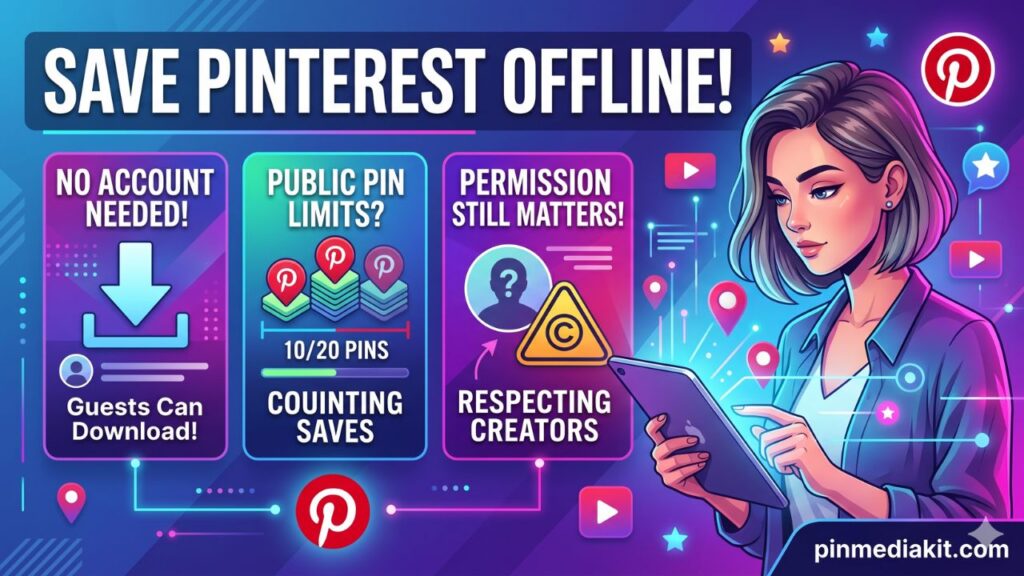
PinMediaKit is for public Pinterest media and personal reference use. Download only files you own, have permission to use, or are allowed to save for personal reference. Downloading a Pinterest file does not give permission to repost, sell, edit, redistribute, or use it commercially without creator permission or a valid license. Users are responsible for how they use saved files.
Check a Public Pinterest Video
Paste a public pinterest.com/pin/ or pin.it link into PinMediaKit and preview what media is available. Video quality depends on the original upload, the public file Pinterest serves, and the device used to play it.
Open Pinterest Video Downloader