Troubleshooting Pinterest Downloads:
Common Problems and Fixes
Most Pinterest download problems trace back to a small set of causes — wrong link type, private or deleted pins, login-required content, slow Pinterest response, unsupported pages, mobile browser behavior, or media that is simply not publicly available. PinMediaKit can only return media from publicly accessible pins.
Open Pinterest Video DownloaderA failed Pinterest download does not always mean the tool is broken. Most of the time, the issue comes from the pin URL itself, whether the content is publicly accessible, how your device or browser handles media files, what Pinterest returns for that particular pin, or the file simply not being available in that moment. Understanding how PinMediaKit works — and knowing that Pinterest download times can vary — helps set realistic expectations and points you toward the right fix quickly.
Start With the Link Type
The link you paste into PinMediaKit matters more than almost anything else. PinMediaKit is built to work with individual Pinterest pin pages — the pages that show one specific pin, one image, one video, or one GIF. When the link points to that exact pin, the tool has a clear target to work from.
Board pages, profile pages, search result pages, home feed pages, and collection links do not point to a single piece of media. They load a grid of many pins and there is no single file for PinMediaKit to identify. Copied links from inside the Pinterest app can also behave differently depending on the version and device.
Individual pin page URLs — for example pinterest.com/pin/123456789 — and shortened pin.it links. These point directly to one pin and give PinMediaKit a clear target.
Board URLs such as pinterest.com/username/boardname, profile URLs, search result pages, home feed links, collection links, and links copied from within the Pinterest app that do not resolve to a single pin page.
If the full Pinterest URL is not working, try the pin.it short link for the same pin. You can usually find the short link by using the Share option inside Pinterest on any individual pin page.
Why the Preview Does Not Appear
The preview section in PinMediaKit appears only when the tool can find publicly available media for the pin you submitted. If no preview appears, it does not necessarily mean the tool failed — it often means the pin’s media is not reachable without signing in, or is no longer available.
Common reasons a preview does not appear include: the pin is set to private, the pin is on a secret board, the pin has been deleted or removed by the creator, the pin requires a Pinterest login to view, the pin URL points to something other than an individual pin page, or Pinterest is responding slowly at that moment.
Open the pin link in a private or incognito browser window. If Pinterest asks you to sign in before showing any media, PinMediaKit may not be able to return a preview for that pin — because the media itself is not publicly accessible.
Private, Deleted, and Login-Required Pins
Not all Pinterest pins are the same from an access perspective. Understanding the difference helps clarify why PinMediaKit may not be able to return a file for certain pins.
Pins saved to a private board are only visible to the board owner. Because the media is not publicly accessible, PinMediaKit may not be able to return a preview or file for these pins.
Pinterest secret boards are only visible to the board owner and invited collaborators. Pins on secret boards are not publicly accessible and PinMediaKit may not be able to reach the media.
If a creator has deleted a pin or Pinterest has removed it, the pin URL no longer leads to available media. PinMediaKit may not be able to return a file because the media is no longer publicly accessible.
Some pins prompt a Pinterest login before showing content. This happens for certain content types and regions. When a login screen appears before the media, PinMediaKit may not be able to reach it.
In each of these cases, PinMediaKit may not be able to return a file because the media is not publicly accessible. This is a characteristic of the pin itself — not a limitation of the tool that can be worked around.
The File Opens Instead of Downloading
When you tap a download link, your browser decides whether to save the file to your device or open it inline. This is a browser decision — not something PinMediaKit controls — and it varies a great deal depending on your device, browser, and settings.
On some devices, particularly iPhone with Safari, videos and images open in the browser’s media viewer. On others, the file goes straight to Downloads. Understanding what your device does helps you take the right next step.
Safari commonly opens video and image files in a browser viewer instead of saving them. From there, tap and hold the media, then use Save to Photos or the share sheet to save to Files. See using PinMediaKit on your phone for full steps.
Chrome on Android usually saves files directly to your Downloads folder, but some media types may open in a viewer first. If this happens, tap the menu or share icon and look for a save or download option from there.
Desktop browsers differ in how they handle media. Chrome and Edge usually save files automatically, while Firefox and Safari may open them inline. You can often right-click the opened media and choose Save As to save it locally.
If media opens in the browser instead of saving, do not close the tab. Use the browser’s share sheet, long-press the media, or right-click to find a save option. The file is accessible — the browser is just choosing how to show it first.
The Download Is Slow or Times Out
A slow response or timeout when using PinMediaKit does not always mean the pin is unavailable. Sometimes Pinterest responds more slowly than usual, your connection is under load, or the media file is large — such as a long video or a high-resolution image. In those cases, waiting briefly and trying again can help.
That said, repeated timeouts on the same pin are a signal worth paying attention to. They can mean the pin is no longer publicly accessible, the URL is not an individual pin page, or the content is restricted. Understanding what affects Pinterest download times helps you decide when to retry and when to move on.
Temporary slow Pinterest response, a brief connection drop, a large video or GIF file size, or a mobile browser taking longer to process the file. Waiting a short time and trying again often resolves these cases.
Private pin, deleted pin, login-required pin, wrong URL type such as a board or profile page, or restricted content. If multiple retries time out consistently, the pin is likely not publicly accessible.
Video, Image, and GIF Problems Are Different
Pinterest serves different types of media files for different pin types, and each behaves differently when you try to save it. A pin that looks like a video may be stored differently than one that appears to be a GIF or an image. What PinMediaKit returns depends on what Pinterest publicly provides for that specific pin.
Using the right PinMediaKit tool for the right pin type is an important step. If you are trying to save a video pin and using the image downloader, results may not match what you expect. The tools below are matched to pin types to give you the most relevant result for each kind of media.
Video Downloader
For public Pinterest video pins. If the pin contains publicly available video media, this tool is the correct starting point.
Open Video ToolImage Downloader
For public Pinterest image pins. If the pin is a still photo or graphic, the image downloader matches the file type correctly.
Open Image ToolGIF Downloader
For public Pinterest GIFs and animated-style pins. Some animated pins may be served as GIF, image, or another format depending on what Pinterest publicly provides.
Open GIF ToolWhy Video Quality or Format Looks Different
The file you save through PinMediaKit is the file Pinterest publicly provides for that pin. PinMediaKit does not alter the quality, resolution, format, or file size of what Pinterest makes available. What you receive is what Pinterest serves publicly for that pin at that moment.
Some pins may return a smaller or compressed version of a video. Some may return a different format than you expected. Original upload quality, the resolution Pinterest chose to store publicly, and how the pin was originally created all affect what the saved file looks like. PinMediaKit cannot guarantee HD, original quality, or a specific format for every pin — because that depends entirely on the original pin and what Pinterest stores.
For more detail on why saved files sometimes look different from the pin, see the guide on video quality on Pinterest downloads.
If the saved file is lower quality than the pin looks on Pinterest, the difference is usually due to compression applied by Pinterest when the original file was uploaded. PinMediaKit returns what is publicly available — it cannot recover quality that was removed during the original upload.
Quick Checks Before Trying Again
Before retrying with a different approach, run through these practical checks. Each one addresses a common cause of failed or unexpected downloads — and any one of them can make the difference.
Make sure the URL you are pasting leads to a single pin page — a page that shows one image, video, or GIF — not a board or profile page. The URL should include /pin/ in the path.
If the full Pinterest URL is not working, find the short pin.it link by using the Share option on the individual pin page. Short links sometimes resolve more cleanly than full URLs.
Open the pin link in a private or incognito browser window. If Pinterest asks for a login before showing any content, the pin is not publicly accessible and PinMediaKit may not be able to return a preview.
Match the tool to the pin type. Use the video downloader for video pins, the image downloader for image pins, and the GIF downloader for animated pins. Using a mismatched tool can produce unexpected results.
A slow or unstable internet connection can cause timeouts, especially with larger video files. Moving to a more stable connection, such as Wi-Fi rather than mobile data, can help PinMediaKit reach Pinterest cleanly.
If Pinterest is responding slowly, a short wait of a minute or two and then retrying often resolves the issue without any other changes. Avoid repeated rapid retries on the same link, as these rarely help and can slow things further.
What PinMediaKit Can and Cannot Fix
PinMediaKit works within what Pinterest publicly provides. Some troubleshooting steps will help. Others will not — because the underlying issue is the pin itself, not the tool. Knowing the difference saves time.
Public pin links where media is available.
Previewing available media before saving.
Choosing the right tool for video, image, or GIF pins.
Opening media in browser when a public file is accessible.
Providing a starting point for media that Pinterest publicly serves.
Private or secret board content.
Deleted or removed pins.
Pins requiring a Pinterest login.
Restricted or region-limited content.
Creator or platform access controls.
Low quality from the original upload.
Browser download behavior on every device.
Reuse permissions or copyright clearance.
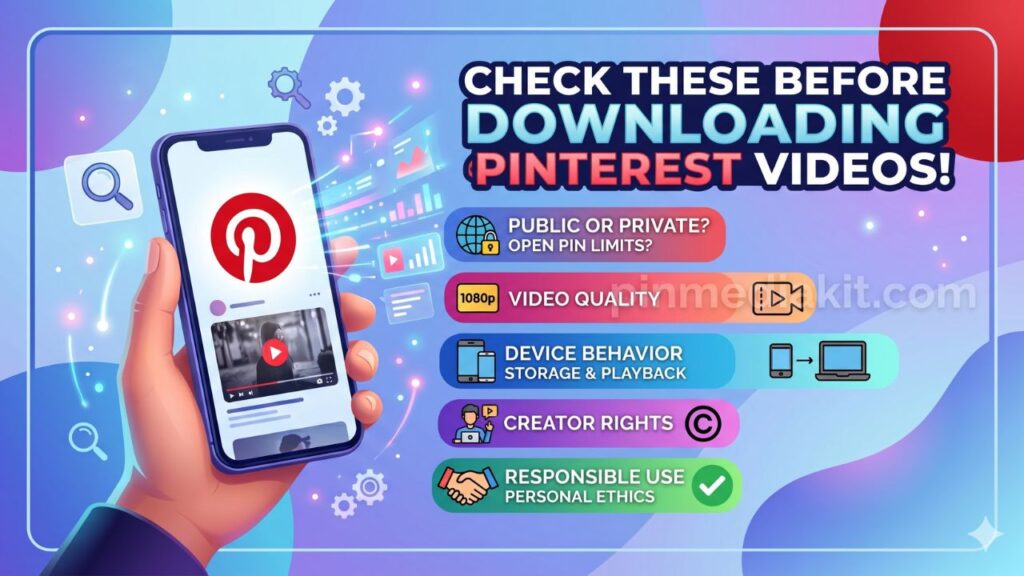
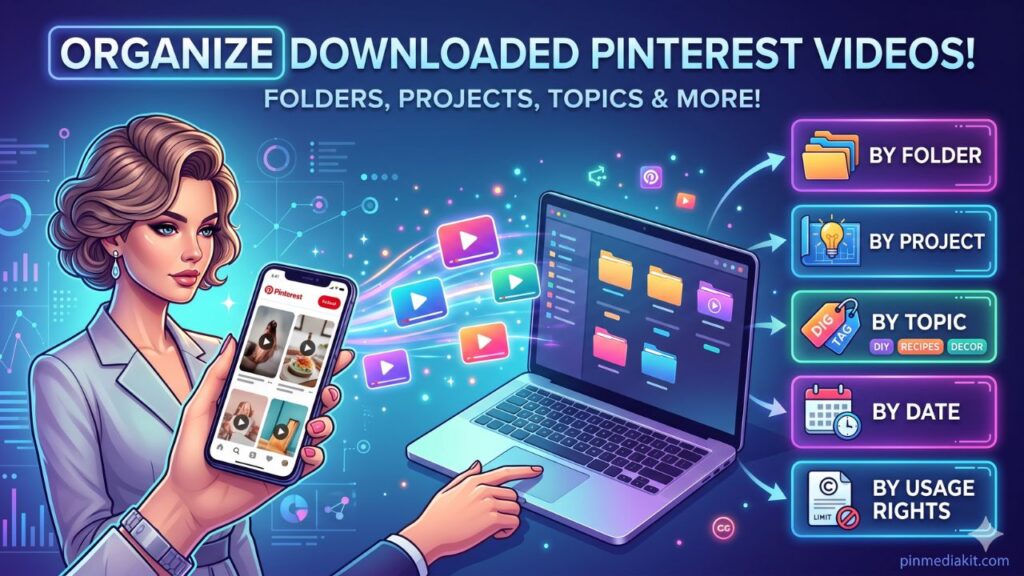
For a broader look at what to consider before saving Pinterest media, the guide on things to know before downloading Pinterest videos covers the full picture — including file organization tips after you save.
PinMediaKit is for public Pinterest media and personal reference use. Download only files you own, have permission to use, or are allowed to save for personal reference. Downloading a Pinterest file does not give permission to repost, sell, edit, redistribute, or use it commercially without creator permission or a valid license. Users are responsible for how they use saved files.
Try a Public Pinterest Link Again
Paste an individual pinterest.com/pin/ or pin.it link into PinMediaKit. If the pin is public and media is available, the tool will show a preview and a save or open option.