How to Download Pinterest Videos
from Public Pins
Paste a public Pinterest video pin link into PinMediaKit, preview the available media, and save or open the file on your device. PinMediaKit works with publicly accessible pins only — it does not unlock private, deleted, restricted, or login-required content.
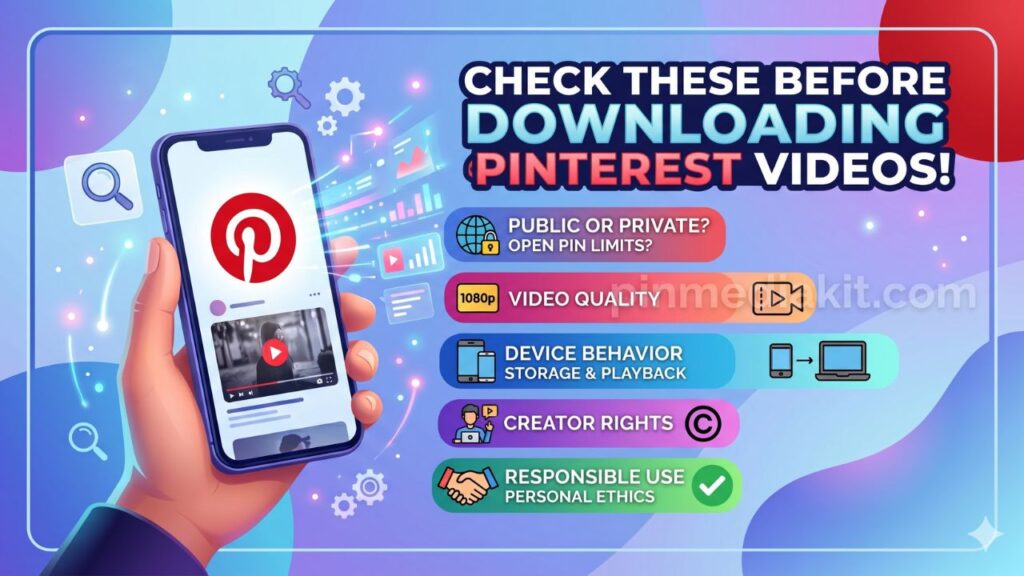
Open Pinterest Video DownloaderThis guide covers public Pinterest video pins only. If a pin is publicly accessible and media is available, PinMediaKit can help you preview and save the file. Saving a video file does not grant any permission to repost, sell, edit, or use it commercially — always check creator rights before sharing or publishing saved content. For a fuller picture before you start, see things to know before downloading Pinterest videos and how PinMediaKit works.
Start with a Public Pinterest Video Pin
PinMediaKit is built to work with individual Pinterest pin pages — the pages that display one specific video, image, or GIF. When you open a video pin on Pinterest and copy that page’s URL, you have the right kind of link for PinMediaKit to work from.
Links that point to a board, a profile, a search result, a home feed, or a collection page do not identify a single media file. PinMediaKit needs a link that leads directly to one specific pin. The URL should contain /pin/ in the path, or be a pin.it short link created from the pin’s Share option.
Individual pin page URLs such as pinterest.com/pin/123456789 and shortened pin.it links. These point to one specific pin and give PinMediaKit a clear, direct target to work with.
Board URLs like pinterest.com/username/boardname, profile pages, search result pages, home feed links, private pins, login-required pins, and links copied from inside the Pinterest app that do not resolve to a single pin page.
Copy the Correct Pinterest Video Link
The link you copy makes all the difference. Pinterest provides a Share option on every pin that gives you the cleanest individual pin URL. Using that link — rather than copying from the browser address bar mid-scroll or from inside the app — gives you the most reliable starting point.
Tap or click the video pin so it opens on its own page — not inside a grid, a board preview, or a modal. The URL in your browser should change to the individual pin’s address.
Tap the Share icon on the pin — usually an arrow or share button. From the share options, choose Copy Link or Copy Pin Link. This gives you the direct, individual pin URL.
Before pasting, quickly confirm the link contains /pin/ in the URL, or is a pin.it short link. If the link shows a board name, username, or search term instead, go back and use the Share option from the individual pin page.
Open PinMediaKit, paste the copied link into the input field, and submit. PinMediaKit will check whether publicly available media can be found for that pin.
Paste the Link into PinMediaKit
With the individual pin link copied, open PinMediaKit in your browser. Paste the link into the input field at the top of the page and tap or click the button to submit. PinMediaKit will check whether the submitted pin has publicly available video media it can reach.
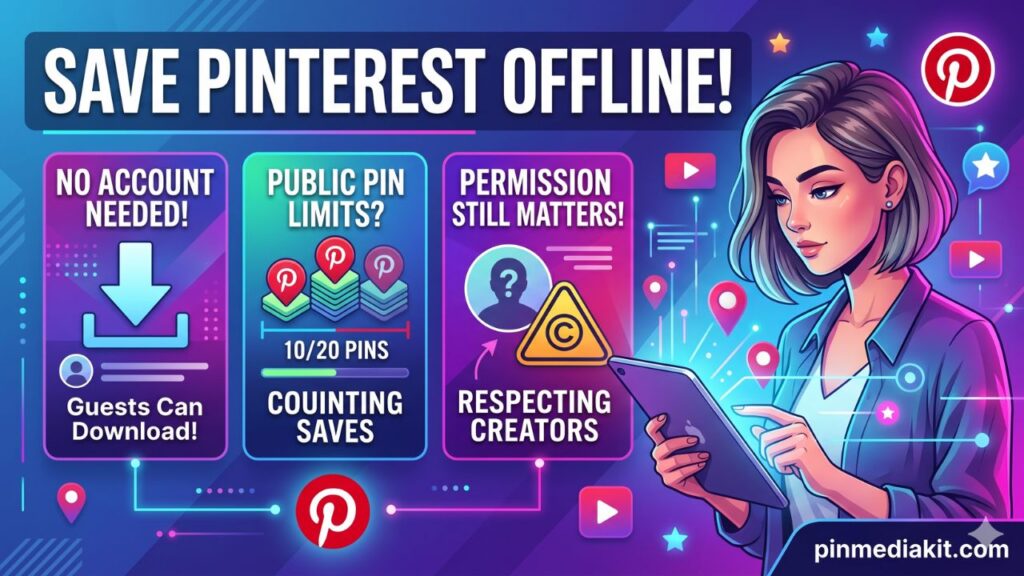
The process works in any modern browser on desktop or mobile. There is no sign-in, no account required, and nothing to install. Once you submit the link, PinMediaKit checks what Pinterest publicly provides for that pin and returns a preview if media is available.
Preview Before Downloading
When PinMediaKit finds publicly available media for the submitted pin, a preview appears before any save or download option. The preview gives you a chance to confirm the right video has been found before you save the file to your device.
This step matters because Pinterest pins can link to a variety of media types and sources. The preview helps you verify that what you see matches the pin you intended to save. It also confirms that PinMediaKit was able to reach the public media for that pin — because if no preview appears, the file may not be available to save at all.
If no preview appears, the pin may be private, deleted, restricted, login-required, on an unsupported page type, or Pinterest may be responding slowly. Check that the link contains /pin/ and try opening it in a private browser window first — if Pinterest asks for a login, the media may not be publicly accessible.
Save or Open the Available Video
When media is available and the preview looks correct, PinMediaKit provides a save or download option. Depending on your device and browser, the video may download directly to your device, or it may open in the browser’s media viewer first. Both outcomes mean the file was successfully reached — your device is simply handling it differently.
Browser behavior for media files varies significantly between devices and platforms. Understanding what your specific device does helps you take the right step to save the file.
Chrome and Edge on desktop commonly save the file directly to your Downloads folder. Firefox and Safari may open the video in a browser viewer instead. If the file opens inline, right-click the video and choose Save As to save it locally. Browser settings control this behavior, not PinMediaKit.
Android with Chrome often saves directly to Downloads. iPhone with Safari commonly opens video files in a browser viewer — from there, use the share sheet or tap and hold the media to find a save option. For full mobile steps, see using PinMediaKit on your phone.
If a video opens in the browser instead of saving, do not close the tab. The file is accessible — use your browser’s share sheet, a long press on the video, or right-click to find a save or download option from there.
Why Some Pinterest Videos Cannot Be Downloaded
PinMediaKit can only return media that Pinterest makes publicly available for a given pin. When a pin falls outside that scope, PinMediaKit may not be able to return a file — and that is a characteristic of the pin itself, not something a different approach can work around.
Pins saved to private boards or secret boards are only visible to the board owner. PinMediaKit may not be able to return a file because the media is not publicly accessible.
If a creator has removed a pin or Pinterest has taken it down, the URL no longer leads to available media. PinMediaKit may not be able to return a file for a pin that no longer exists publicly.
Some pin pages prompt a Pinterest sign-in before showing any content. When a login screen appears before the media, PinMediaKit may not be able to reach the file to generate a preview.
Certain content types and region-limited pins may not be publicly accessible outside specific contexts. PinMediaKit cannot return files for restricted content, regardless of the link type used.
Board URLs, profile pages, search pages, and home feed links do not point to individual pins. PinMediaKit needs an individual pin URL or a pin.it short link to identify and check for available media.
A temporary slow response from Pinterest can cause a timeout even for publicly available pins. If the pin is public and the link is correct, waiting briefly and retrying once may help. If timeouts repeat, the pin may not be available.
For a deeper look at why certain downloads fail and what can be checked before retrying, see the Pinterest download troubleshooting guide.
What to Expect from Video Quality
The quality of a saved Pinterest video depends on the original upload, what format Pinterest stores publicly for that pin, how much compression was applied when the video was uploaded, and how your device plays the file back. PinMediaKit returns what Pinterest publicly serves — it does not alter quality, resolution, or format.
This means the saved file may look different from how the video appears when streaming inside Pinterest. Streaming can include adaptive quality adjustments that do not carry over to a saved file. For a full explanation, see the guide on video quality on Pinterest downloads.
When the original video was uploaded at a higher resolution, Pinterest stored a cleaner public file, and the pin has not been reuploaded or converted multiple times. Newer pins with original creator content tend to return a cleaner file.
When the source was already compressed or blurry before being uploaded, when the video has been reuploaded or converted multiple times, or when only a smaller public version is available from Pinterest for that pin.
What Affects Download Time
How long PinMediaKit takes to return a preview or save option depends on several factors that vary with each pin and each session. Most are outside PinMediaKit’s direct control. Understanding them helps you decide when to wait, when to retry, and when to move on. For the full picture, see the guide on Pinterest download times.
Shorter video files, a stable internet connection, a clear public pin, and a responsive Pinterest at the time of the request. These conditions together mean PinMediaKit can reach and return the media with minimal delay.
Larger video files, a slower or mobile connection, or Pinterest responding more slowly than usual. A longer wait does not necessarily mean the pin is unavailable — some larger files simply take more time to reach.
A timeout can occur from a slow connection, a slow Pinterest response, or a pin that is no longer publicly accessible. A single timeout is not always final — but repeated timeouts on the same pin usually signal the content is not reachable.
A brief wait and one retry can help when Pinterest was temporarily slow or your connection dropped momentarily. Repeated rapid retries are less likely to help and should not be used for pins that have already timed out multiple times on a clear connection.
Use the Right PinMediaKit Tool
Pinterest serves different file types for different pin types. Using the tool that matches the pin type gives you the most relevant result. A video pin, an image pin, and an animated pin each return different media — and using a mismatched tool can produce unexpected output or no result at all.
Video Downloader
For public Pinterest video pins. Use this tool when the pin contains a video that plays inside Pinterest and the URL contains /pin/.
Image Downloader
For public Pinterest image pins. Use this tool when the pin is a still photo or graphic rather than a video or animated content.
Open Image ToolGIF Downloader
For public Pinterest GIFs and animated-style pins. Some animated pins may be served as GIF, image, or another format depending on what Pinterest publicly provides.
Open GIF ToolCommon Mistakes to Avoid
A few common missteps account for most frustrating Pinterest download experiences. Avoiding these saves time and leads to more predictable results.
Board and profile URLs do not point to a single piece of media. Always open the individual pin page first and copy the link from there or use the Share option to get a direct pin URL.
Private, secret board, and login-required pins are not publicly accessible. PinMediaKit may not be able to return a file for these pins — and no alternative approach changes the access status of the original content.
File quality depends on what Pinterest publicly stores for each pin. Some pins return a smaller, compressed version. PinMediaKit cannot improve quality beyond what is publicly available for that specific pin.
If a link consistently returns no result across multiple retries on a stable connection, the pin URL type may be unsupported or the content may not be publicly accessible. Retrying many times on the same unsuitable link will not produce a different result.
Saving a Pinterest video file does not grant any right to repost, share, publish, or redistribute the content. Creator rights and platform terms still apply to saved files. Always check before sharing saved content.
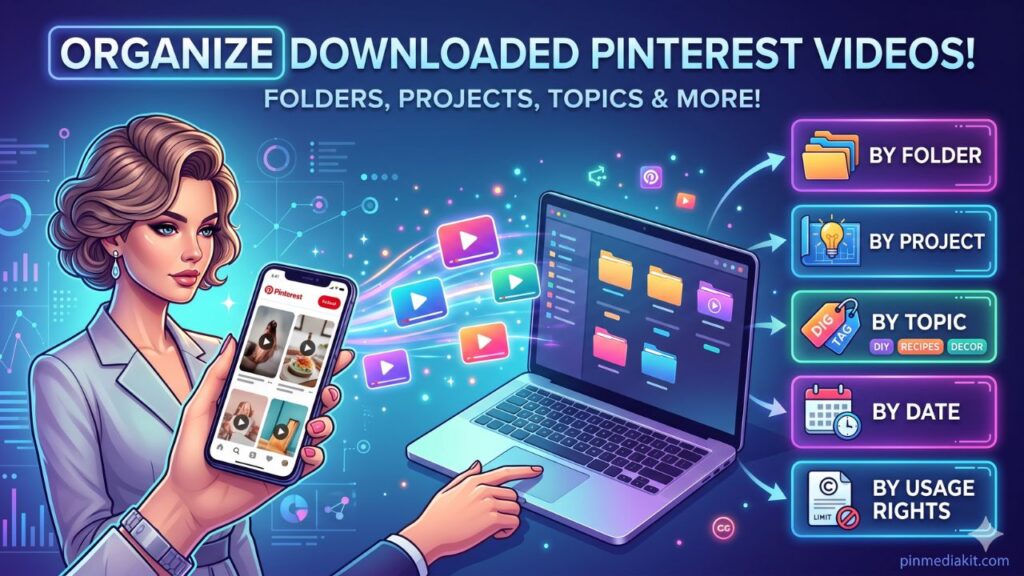
A file being publicly viewable on Pinterest does not mean it is free to use commercially or without credit. Copyright and creator permissions apply independently of whether a file can be saved. For guidance on organizing saved files responsibly, see organizing downloaded Pinterest videos.
PinMediaKit is for public Pinterest media and personal reference use. Download only files you own, have permission to use, or are allowed to save for personal reference. Downloading a Pinterest video does not give permission to repost, sell, edit, redistribute, or use it commercially without creator permission or a valid license. Users are responsible for how they use saved files.
Download a Public Pinterest Video
Paste an individual pinterest.com/pin/ or pin.it link into PinMediaKit. If the pin is public and video media is available, the tool will show a preview and a save or open option.